Yolmira has no account and no cloud, so your data lives only on your phone. A backup file is how you keep a copy — and how you move to a new phone.
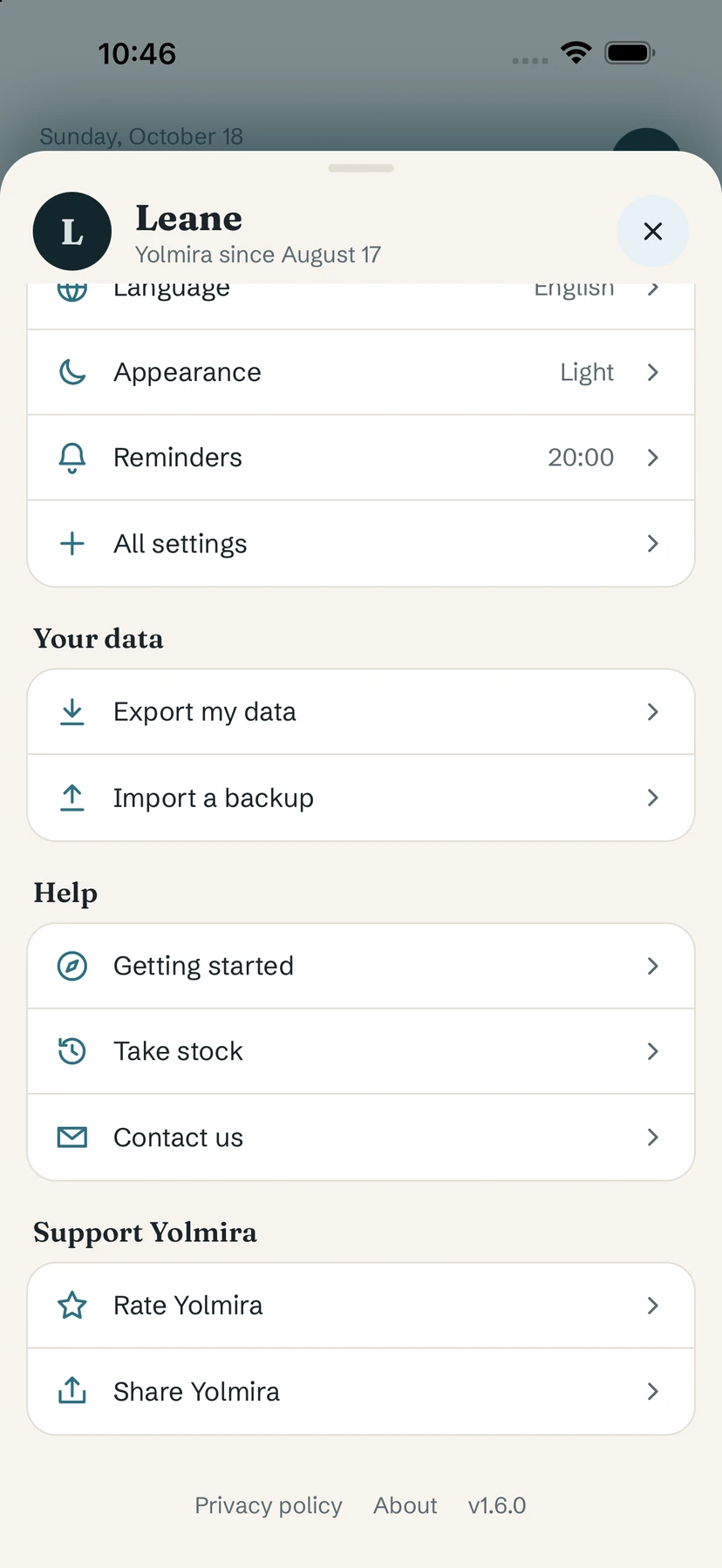
Export your data
- Tap your initial (top right).
- Under Your data, tap Export my data.
- Your phone's share sheet opens: save the file to Files, a drive, send it to yourself by email — wherever you like.
The backup includes your habits and their history, your goals, your journal and notes, and your craving log.
Import a backup
- On the phone where you want your data, install Yolmira and open it.
- Tap your initial, then Import a backup, and pick your file.
- Confirm Replace your data? with Replace.
Tip. Importing replaces everything currently in the app. If you've already started on the new phone, export from it first if you want to keep anything.
When to export
- Before changing phone.
- Before uninstalling Yolmira — deleting the app deletes its data.
- From time to time, if you'd like a copy you control.
Nothing is ever uploaded on your behalf: backups are manual by design.
Free / Pro. Export and import are free. To get Pro back on a new phone, use Restore purchase — see Yolmira Pro.
Common questions
How do I move Yolmira to a new phone?
Export your data on the old phone, then on the new one tap Import a backup and pick the file. Use Restore purchase to get Pro back.
Is there a cloud backup?
No. Yolmira has no account and no server. Backups are files you export and keep wherever you choose.
Does importing merge with my current data?
No. Importing replaces everything currently in the app.
Still stuck? Write to us at yolmira-help@outlook.com — a person reads every message.